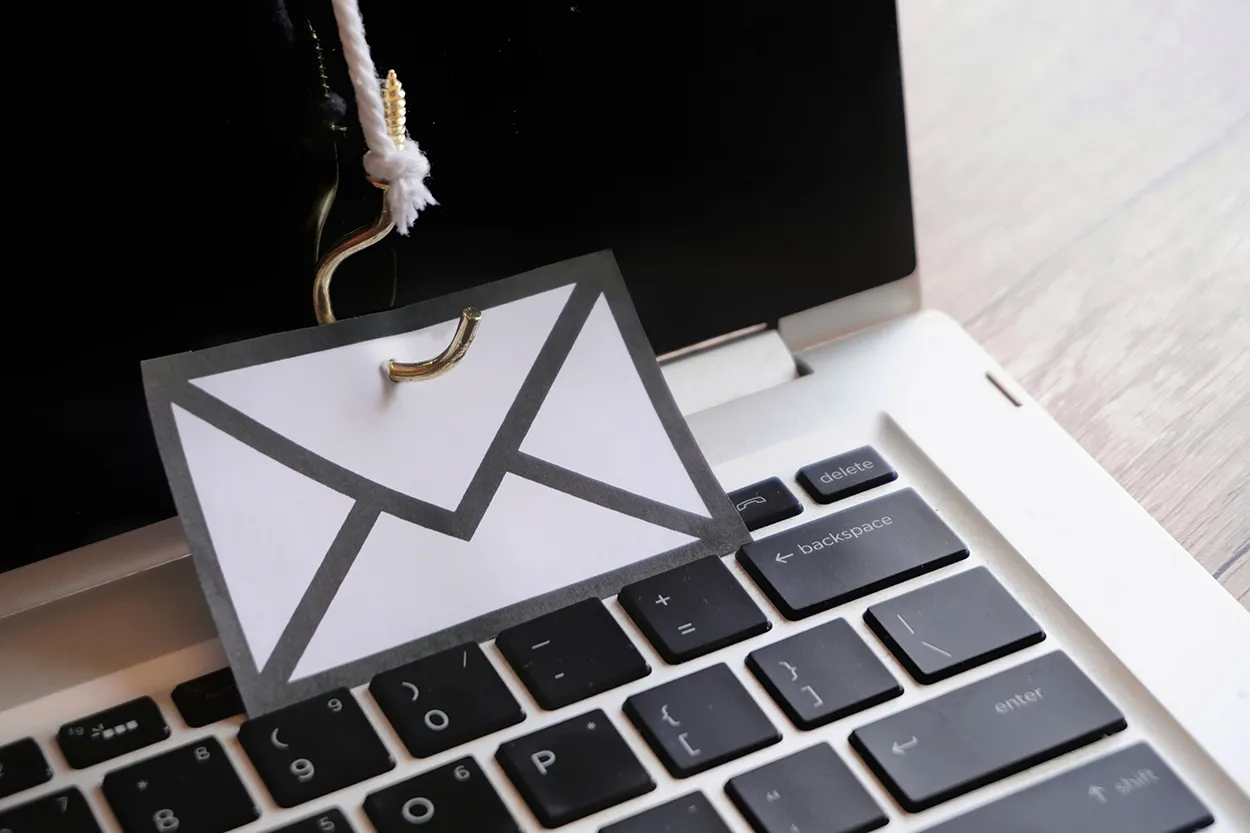
Phishing email prevention is a skill that every internet user needs, because phishing attacks remain among the most effective and most common methods cybercriminals use to steal credentials, financial information, and personal data. Phishing emails impersonate trusted entities—banks, delivery services, government agencies, employers, and tech platforms—to trick recipients into clicking malicious links, downloading infected attachments, or providing sensitive information. Understanding how to spot and avoid phishing attempts protects both your accounts and your finances. I’ve reviewed enough of these messages forwarded to me by readers to know that the good ones have gotten noticeably harder to spot at a glance over the past couple of years.
What Is a Phishing Email?
A phishing email is a fraudulent message designed to look legitimate in order to deceive the recipient into taking an action that benefits the attacker. The name is a play on “fishing”—the attacker casts a wide net hoping someone will take the bait. Common goals of phishing emails include:
- Stealing login credentials by directing you to a fake login page that captures your username and password
- Installing malware through malicious attachments or links that download software to your device
- Capturing financial information such as credit card numbers, bank account details, or Social Security numbers
- Gaining access to your accounts to commit identity theft or financial fraud
Common Types of Phishing
Generic Phishing
Mass-distributed emails sent to large numbers of recipients, impersonating well-known brands (Amazon, PayPal, Netflix, the IRS, FedEx). These cast a wide net and rely on at least some recipients having a relationship with the impersonated brand.
Spear Phishing
Targeted attacks customized for a specific individual or organization. Spear phishing emails may reference your name, employer, recent purchases, or other personal details to appear more credible. They are more difficult to identify as fraudulent because of their personalization.
Smishing and Vishing
Smishing is phishing conducted via SMS text messages. Vishing is phishing via voice calls. While this guide focuses primarily on email, the warning signs and preventive habits are largely the same across channels.
Warning Signs of a Phishing Email
No single indicator guarantees that an email is a phishing attempt, but these red flags warrant close scrutiny:
Sender Address Mismatch
The display name in an email can say anything—”Amazon Customer Service” or “IRS Refund Center”—regardless of the actual sending address. Always look at the full email address, not just the display name. Phishing emails often come from addresses like support@amazon-account-verify.com or irs.refund@gmail.com rather than from the organization’s official domain. Hover over the sender name (without clicking) to reveal the actual address in most email clients. I got a message last year that used my bank’s exact logo and color scheme, with a sender name reading my bank’s name—but the actual address, once I checked, ended in a completely unrelated domain registered only weeks earlier.
Urgency and Pressure Language
Phishing emails almost always create a sense of urgency: “Your account will be closed in 24 hours,” “Immediate action required,” “Your payment was declined—update now.” Legitimate organizations rarely demand immediate action via email. When you feel pressure to act immediately, slow down and verify the message through independent channels.
Generic Greetings
Mass phishing emails often begin with “Dear Customer,” “Hello User,” or “Dear [email address]” rather than your actual name. Your real bank or service provider typically addresses you by name.
Suspicious Links
Before clicking any link in an email, hover over it to preview the URL. Look for:
- Domains that misspell the brand name (amaz0n.com, paypa1.com, netfIix.com with a capital I instead of lowercase l)
- Domains that append words to a real domain (amazon-account-verify.com, paypal.security-update.net)
- Completely unrelated domains with no apparent connection to the email’s claimed sender
- Links that use URL shorteners to disguise the destination
Unexpected Attachments
Emails you did not expect that contain attachments—especially .zip, .exe, .docm (macro-enabled Word), or .pdf files—should be treated with caution. Even PDF files can contain malicious scripts. If you were not expecting a file from the sender, verify through a separate channel before opening.
Poor Grammar and Spelling
Many phishing emails contain obvious spelling mistakes, grammatical errors, or awkward phrasing. This is not always the case with sophisticated attacks, but it remains a useful indicator for mass-distributed phishing. In my own inbox, the ones that still trip this wire tend to have just one small tell—an oddly translated phrase or a punctuation habit that doesn’t match how the real company writes.
Requests for Sensitive Information
Legitimate organizations—banks, government agencies, employers, utility companies—do not ask you to provide passwords, Social Security numbers, full account numbers, or credit card details via email. If an email requests this information, treat it as fraudulent.
How to Verify a Suspicious Email
If you receive an email that raises any doubts, take these steps before clicking anything:
- Do not click links in the email. Open a new browser window and navigate directly to the organization’s official website by typing the URL yourself, or use a bookmarked link you know is genuine.
- Call the organization directly. Use a phone number from their official website, not a number provided in the suspicious email.
- Log in to your account through the official website to check whether there is a legitimate notification waiting for you there. If the email was real, the same alert will appear in your account.
- Check with IT or a trusted colleague if the email appeared to come from someone you know or from your employer.
Technical Defenses Against Phishing
Individual vigilance is essential, but technical safeguards add important layers of protection:
- Enable spam and phishing filters in your email client. Gmail, Outlook, and Apple Mail all have built-in phishing detection that flags many suspicious messages before you see them.
- Use multi-factor authentication (MFA) on all important accounts. Even if a phishing attack captures your password, MFA requires an additional verification step that the attacker typically cannot complete. Authenticator apps are more secure than SMS codes.
- Keep software updated. Browser and operating system updates frequently include security patches that protect against malware that phishing links may attempt to deliver.
- Use a password manager. Password managers fill credentials only on the exact domain they were saved for. If you land on a spoofed site and try to log in, your password manager will not auto-fill because the domain does not match—a useful passive warning that something is wrong.
- Consider a security key or passkey for your highest-value accounts (email, banking). These hardware tokens and passkeys are phishing-resistant by design because authentication is cryptographically tied to the legitimate domain.
What to Do If You Clicked a Phishing Link
If you realize you have clicked a phishing link or submitted information to a suspicious page:
- Change your password immediately for any account the email targeted, and for any other accounts where you use the same password.
- Enable or review MFA on the affected accounts.
- Run a malware scan using your security software if you clicked a link that may have downloaded a file.
- Check your accounts for unauthorized activity or changes.
- Report the phishing email to your email provider and to the organization being impersonated. You can also report phishing to the Anti-Phishing Working Group or forward it to the FTC at reportfraud.ftc.gov.
- Contact your bank or card issuer immediately if any financial information may have been compromised.
Reporting Phishing
Most email providers have a built-in mechanism for reporting phishing:
- Gmail: Open the email, click the three-dot menu, and select “Report phishing”
- Outlook: Select the email, click the three-dot menu, and choose “Report” > “Report phishing”
- Apple Mail: Drag the email to the Junk folder or use Report Junk
The Cybersecurity and Infrastructure Security Agency (CISA) also maintains resources on phishing awareness and reporting that are useful for individuals and organizations alike.
Phishing Prevention Checklist
- Always check the full sender email address, not just the display name
- Hover over links to preview the destination URL before clicking
- Never provide passwords, SSNs, or financial info in response to an email
- Verify suspicious emails through official websites or phone numbers, not links in the email
- Enable MFA on all important accounts
- Use a password manager—it will not auto-fill on spoofed sites
- Keep email, browser, and operating system software updated
- Report phishing emails to your email provider and to CISA or the APWG
- If you clicked a phishing link: change passwords, run a malware scan, and monitor accounts
Phishing works because it exploits human instincts—urgency, trust, curiosity, and fear. Building the habit of pausing before you click, verifying before you act, and reporting what you see makes you a much harder target and contributes to broader awareness of active phishing campaigns.
Written by Maria Chen, BloggedTopics Consumer Technology Editor. Last reviewed and updated July 15, 2026.
