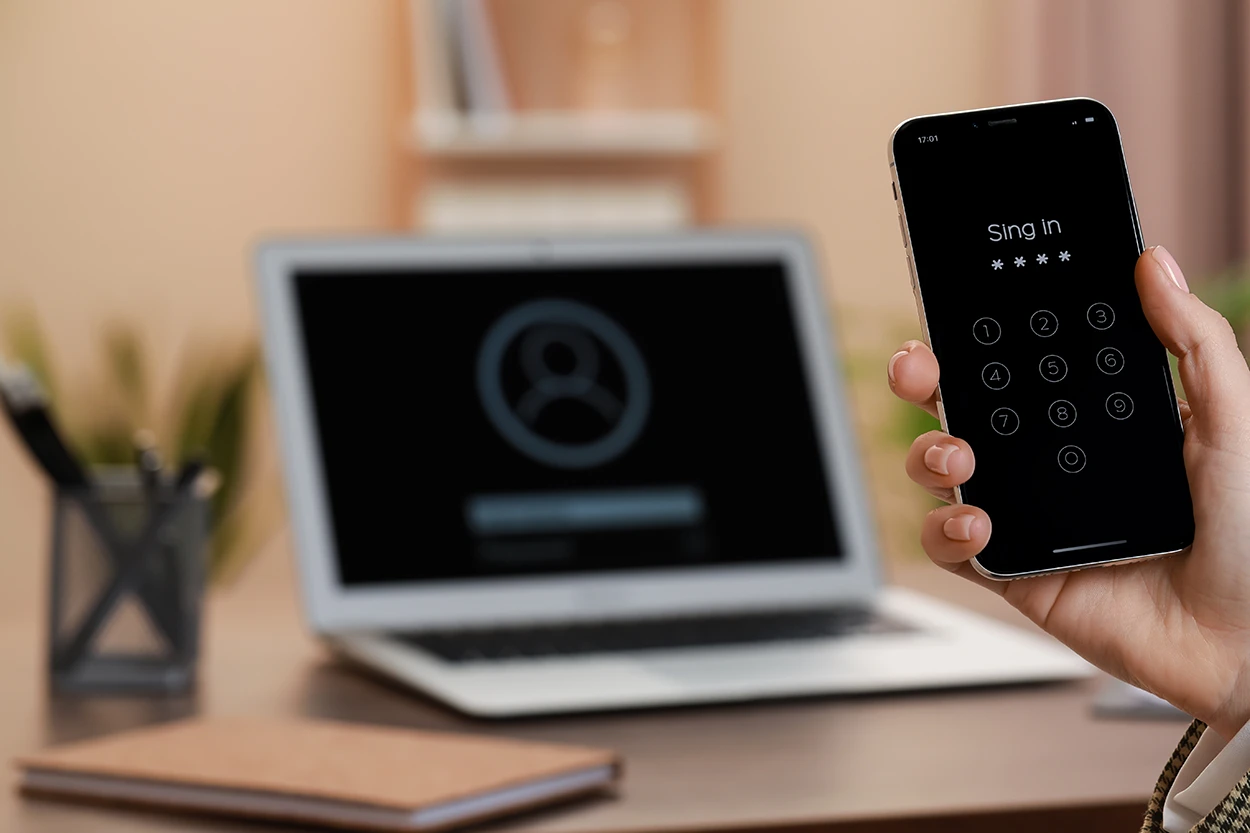
Two-Factor Authentication: The Single Most Effective Step to Secure Your Online Accounts
Two-factor authentication—commonly called 2FA or multi-factor authentication—is widely recognized by security experts as the single most effective step an individual can take to protect online accounts from unauthorized access. Despite this, a significant majority of people still use passwords alone as their only line of defense. Understanding how two-factor authentication works, why it is so effective, and how to set it up on your most important accounts takes less than an hour and protects you against the most common form of account compromise in use today.
Why Passwords Alone Are Not Enough
Passwords fail for several well-documented reasons that have nothing to do with how strong they are. Data breaches expose millions of username-and-password combinations every year—breached credentials from one site are automatically tested against hundreds of other sites in attacks called credential stuffing. Phishing attacks trick users into entering their passwords on convincing fake login pages. Malware installed on a device can capture keystrokes and send them to an attacker in real time. Even a long, complex, unique password that has never been reused is vulnerable if the site storing it experiences a breach or if the user is phished into entering it somewhere they should not.
The National Institute of Standards and Technology, which sets federal cybersecurity standards, explicitly recommends multi-factor authentication as a core protection in its Cybersecurity Framework. The basic logic: even if an attacker has your password, they cannot access your account without also possessing your second factor—something only you have.
How Two-Factor Authentication Works
Authentication systems verify identity using one or more of three categories:
- Something you know: A password, PIN, or security question answer
- Something you have: A physical device like a phone, hardware security key, or smart card
- Something you are: A biometric like a fingerprint, face scan, or voice recognition
Two-factor authentication requires verification from at least two different categories. A password plus a code sent to your phone is the most common implementation—something you know (password) plus something you have (your phone).
The Different Types of 2FA: Ranked by Security
Not all two-factor authentication is equally secure. Understanding the trade-offs helps you choose the right method for each account.
SMS Text Message Codes (Least Secure, But Still Much Better Than Nothing)
When you log in, the service sends a six-digit code to your registered phone number via text message. You enter the code to complete login. SMS 2FA is vulnerable to SIM-swapping attacks, where an attacker convinces your mobile carrier to transfer your phone number to a SIM card they control. It is also vulnerable to interception in specific attack scenarios. Despite these limitations, SMS 2FA is dramatically more secure than a password alone and should be enabled wherever it is the only option available.
Authenticator App Time-Based Codes (Strong)
Authenticator apps like Google Authenticator, Microsoft Authenticator, and Authy generate time-based one-time passwords (TOTP) that rotate every 30 seconds. These codes are generated locally on your device and are not transmitted over a network until you enter them, making them immune to SIM-swapping. They work even without cell service or internet connection. Setting up an authenticator app requires scanning a QR code during initial account setup—the process takes about two minutes per account.
Hardware Security Keys (Strongest)
Physical security keys (using the FIDO Alliance standard, implemented by devices like YubiKey) plug into a USB port or tap via NFC to authenticate. They use public-key cryptography that is resistant to phishing—the key verifies it is communicating with the legitimate website, not a fake one, before authenticating. Hardware keys are the authentication method of choice for journalists, executives, activists, and others with high-value accounts or elevated threat profiles.
Which Accounts to Prioritize for 2FA
Enable 2FA on your highest-value accounts first, then work down the priority list:
- Email: Your email account is the master key to every other account—password reset links go to email. If an attacker controls your email, they can reset and access every other account you own. Enable the strongest 2FA your email provider offers.
- Financial accounts: Bank accounts, brokerage accounts, and payment services (PayPal, Venmo, Cash App) hold real money and deserve maximum protection.
- Password manager: If you use a password manager—which you should—it holds access credentials to everything. Enable 2FA on it without exception.
- Work accounts: Your employer’s email, project management tools, and any systems with access to company data.
- Social media: Compromised social media accounts are used to scam your contacts and spread misinformation. Enable 2FA on all major social platforms.
- Shopping and retail accounts: Accounts with stored payment methods or reward balances are targets for fraud.
How to Set Up an Authenticator App: Step by Step
- Download a free authenticator app from your phone’s app store (Google Authenticator, Microsoft Authenticator, and Authy are all widely supported)
- Log in to the account you want to secure and navigate to Security settings (usually under Account Settings → Security → Two-Factor Authentication)
- Select the option for “Authenticator App” or “TOTP”
- Scan the QR code displayed on screen using your authenticator app
- Enter the six-digit code the app immediately generates to confirm the setup works
- Save the backup codes the site provides in a secure location—these one-time codes let you access your account if you lose your phone
The Critical Importance of Backup Codes
When you enable 2FA, almost every service will offer you a set of single-use backup codes. Save these somewhere secure—a password manager’s secure notes section, a printed copy in a fireproof safe, or an encrypted file. If you lose your phone and have no backup codes, recovering access to a 2FA-protected account can take days and require identity verification with the service’s support team. Backup codes are not optional—they are the contingency plan that makes 2FA safe to use.
Common 2FA Concerns Addressed
Does 2FA Really Take That Long?
Entering a six-digit code adds approximately five to ten seconds to the login process. For accounts you log into daily, this becomes second nature quickly. For accounts you log into less frequently, the security benefit far outweighs the minor time cost.
What If I Get Locked Out?
Storing backup codes prevents lockout. Additionally, most authenticator apps offer cloud backup and account recovery options. The risk of lockout from 2FA is far smaller than the risk of account compromise without it.
Are My Accounts Really Worth Targeting?
Most account compromises are automated—attackers use scripts to test millions of credential combinations from breach databases, not to manually target specific individuals. If your credentials appear in a data breach, automated tools will test them against hundreds of sites within hours regardless of who you are. The Cybersecurity and Infrastructure Security Agency (CISA) recommends 2FA for all Americans as part of its More Than a Password campaign, specifically because credential-based attacks are automated and indiscriminate.
Conclusion
Two-factor authentication is the highest-impact, lowest-effort security improvement available to any individual with online accounts. Start with your email account this week, add your financial accounts next, and work through the full list over the following month. Choose an authenticator app over SMS codes where you have the option, and always save your backup codes securely. The ten minutes it takes to set up 2FA on your most critical accounts may be the best ten minutes you spend on your digital security all year.
 blogged